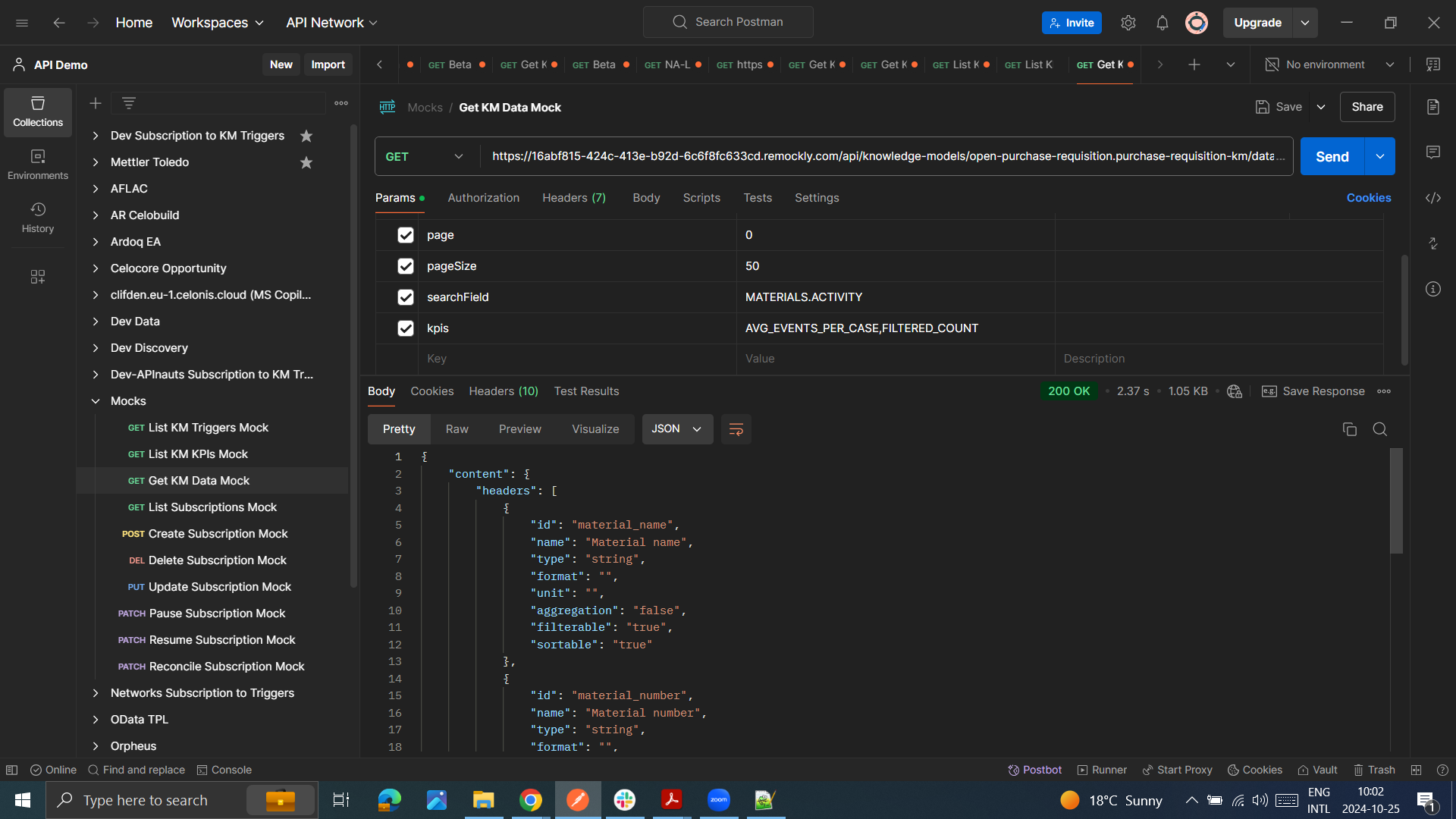
If after reading the documentation you want to give the Knowledge Model API a try, we have prepared a demo environment that anyone can access. Authentication is required, but any token that you pass should work, so no need to get a User or Application key in advance.
To show how this environment works, we will use Postman, but you can use any other REST client.
The URL where this API can be located is: https://16abf815-424c-413e-b92d-6c6f8fc633cd.remockly.com/intelligence/api. Keep in mind that for real production environments, the URL typically ends with /intelligence/api and not /api.
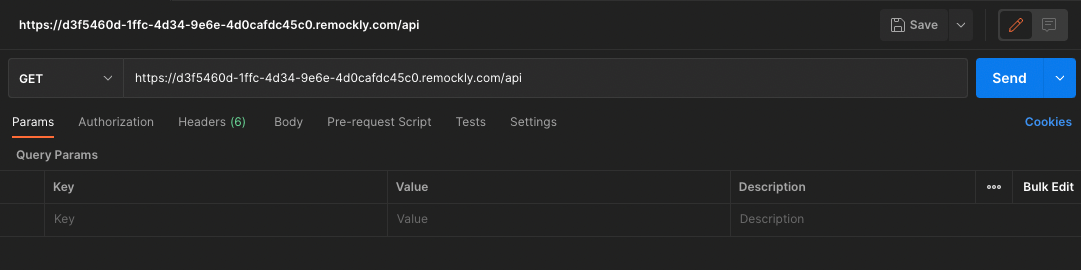
Let's start this Tutorial by creating a new HTTP Request in Postman (File > New > HTTP Request). Make sure that you have selected a GET operation and paste the URL for the API next to it: https://16abf815-424c-413e-b92d-6c6f8fc633cd.remockly.com/intelligence/api.
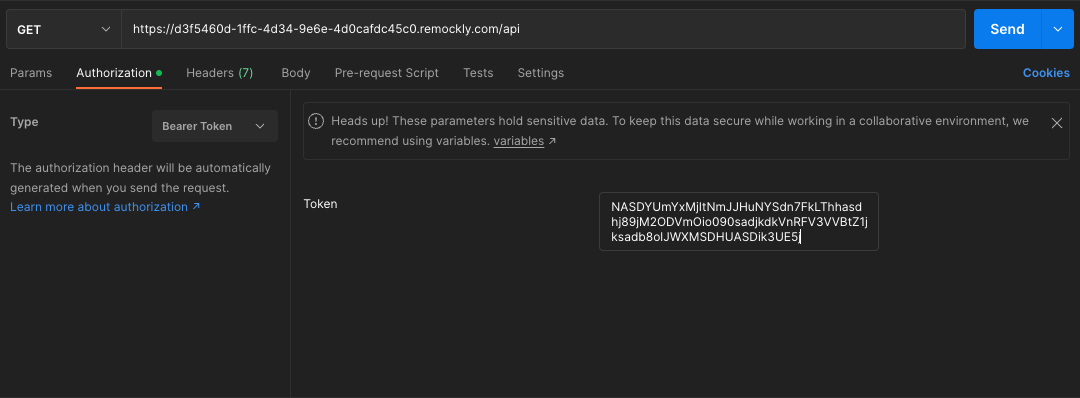
Let's say we have our User API Key which is NASDYUmYxMjItNmJJHuNYSdn7FkLThhasdhj89jM2ODVmOio090sadjkdkVnRFV3VVBtZ1jksadb8olJWXMSDHUASDik3UE5j. Go to Postman and use this key for the Authentication header. Click on Authorization and select Bearer Token for the Type. For the token, paste the above key.
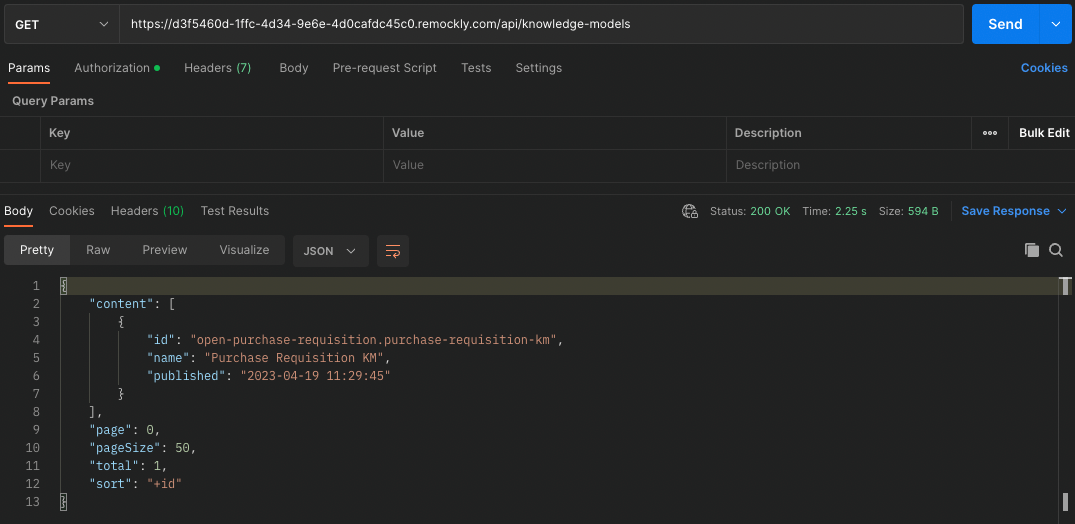
Now we should be ready to start getting some information such as the full list of Knowledge Models. For that, you need to add '/knowledge-models' at the end of the URL. As we can see, there is one Knowledge Model with the id open-purchase-requisition.purchase-requisition-km and named Purchase Requisition KM. As we can tell by the name, this Knowledge Model is giving us information about purchases that happened in the company.
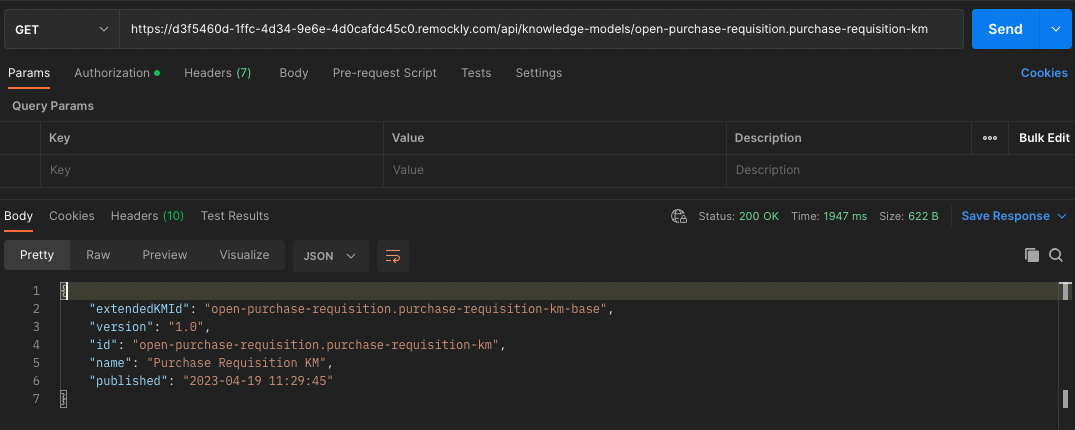
Next, let's see the details for the Purchase Requisition KM Knowledge Model. In order to do that, we need to append the id of the Knowledge Model to the URL we used for the previous step. In the results we can get extra information for this Knowledge Model, for example that is extending another Knowledge Model with id open-purchase-requisition.purchase-requisition-km-base.
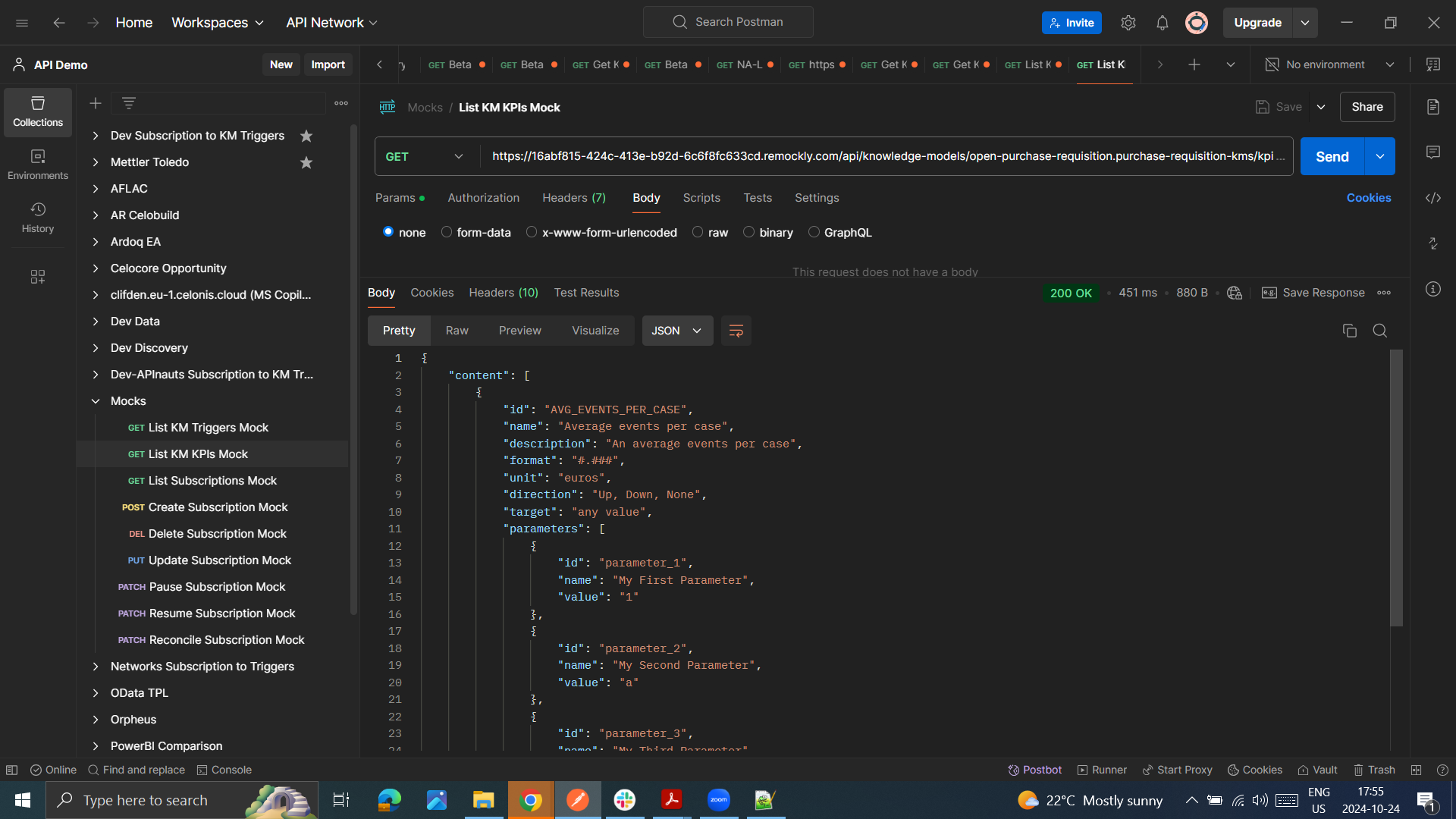
Imagine you want to retrieve all the KPIs within a Knowledge Model. This is possible just adding the Knowledge Model id, for example open-purchase-requisition.purchase-requisition-km-base and later appending /kpis to the URL.
Finally, it's time to consume the data from different records and KPIs of the Knowledge Model. For this we need to first append /data to the URL we got in step #4. Then, we should also specify the field Ids and the KPI Ids that we want to retrieve. For this last step, add a parameter in the Params tab named fields with the value MATERIALS.ACTIVITY and one with name kpis and the value AVG_EVENTS_PER_CASE,FILTERED_COUNT. The result: