System for Cross-domain Identity Management (SCIM), is a standard protocol designed to make it easier to manage user identities across various cloud-based applications e.g. your source identity system and your Celonis Platform team. It provides a common user schema and an API for automating the exchange of user identity information. SCIM's focus is on simplicity and fast integration, supporting scenarios like creating, updating, and deleting user accounts and groups automatically.
If you are using Azure with SCIM using OAuth in Celonis, then you will need to enter your OAuth scope in the Token Endpoint field in Azure. Your Token Endpoint field in Azure will then look like this:
[https://[TEAM].[REALM].celonis.cloud/oauth2/token?scope=user-provisioning.scim]For more information about SCIM, go to scim.cloud.
To enable SCIM for your Celonis Platform team:
Go to Admin & Settings > Settings and then switch on the Enable SCIM toggle.
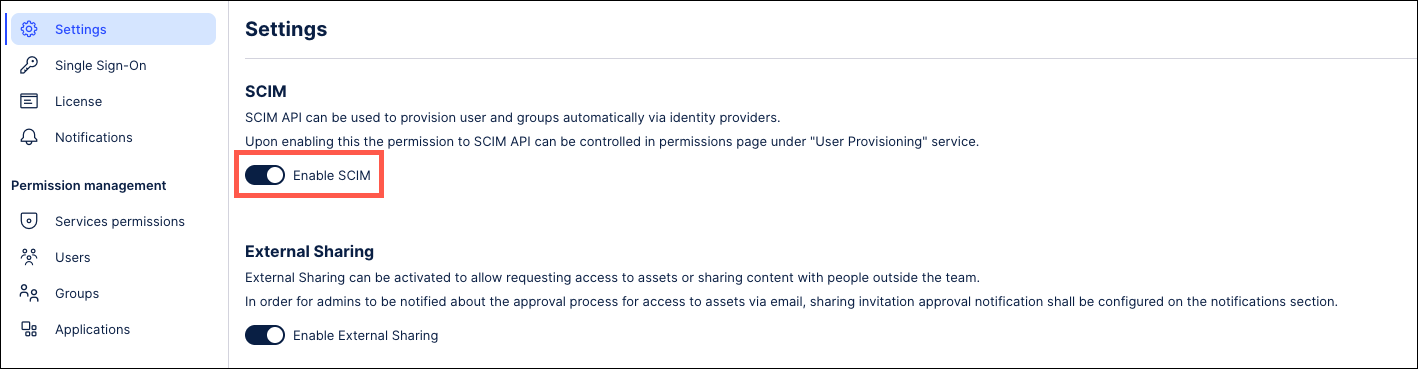
SCIM can only be enabled if Just-in-time (JIT) user provisioning is disabled. See Configuring SAML JIT single sign-on.
Add an OAuth client to authorize your identity system access to the SCIM API.
- Go to Admin & Settings > Applications and follow the process described in Registering your OAuth client in Celonis Platform to add a new OAuth client application.
- When asked to define scopes, select "user-provisioning.scim".
- Give your OAuth client SCIM permissions by going to Admin & Settings > Permissions > User Provisioning.
In your identity provider's settings, use the credentials that you created in the previous step and the following URL:
[https://[Team-Name].[Realm].celonis.cloud/scim/v2/]
These are the attributes of the SCIM Schema we are using for the user and group resource. The SCIM protocol is defined in RFC 7643.
For provisioning users, we are using attributes that are present in the default SCIM user schema (urn:ietf:params:scim:schemas:core:2.0:User) and attributes in our custom SCIM user extension (urn:ietf:params:scim:schemas:extension:celonis:3.0:User). For the explanation of individual attributes, see the following:
| Attribute | Explanation | Required | Schema |
|---|---|---|---|
| userName | This has to be an email that belongs to a mailbox for verifying the address. This field is used to verify the user who wants to login. | yes | default |
| displayName | The name will be shown in the Celonis Platform. | recommended | default |
| externalId | This is an ID you may provide for your own reference. | recommended | default |
| active | Indicates if the user may log in. Defaults to true. | no | default |
| name | If displayName is not provided this will be used instead. | no | default |
| role | The role of the user in Celonis Platform - "MEMBER", "ANALYST" or "ADMIN". The default value is "MEMBER". | no | custom |
| sendEmailOnInvitation | When inviting a new user, this controls whether or not the user should receive an invitation email. For example, this can be used if you want to send your own custom e-mails at your own pace. | no | custom |
For provisioning groups, we are using attributes that are present in the default SCIM group schema: (urn:ietf:params:scim:schemas:core:2.0:Group) and attributes in our custom SCIM group extension: (urn:ietf:params:scim:schemas:extension:celonis:3.0:Group). In the following table, the attributes are explained.
| Attribute | Explanation | Required | Schema |
|---|---|---|---|
| displayName | This defines the group name in Celonis Platform and must be unique for your team. | yes | default |
| externalId | This is an ID you may provide for your own reference. | recommended | default |
| members | A list of members of the group. One list element contains key-value pairs. The "value" key attribute is required and defines the ID of the user in our source system (this is not the externID). | no | default |
| role | The role of the group in Celonis Platform - "MEMBER", "ANALYST" or "ADMIN". The default value is "MEMBER". | no | custom |
For additional help configuring SCIM or to see which SCIM endpoints are available, refer to the API documentation provided. To access this API documentation, copy the URL below and replace [Team-Name] and [Realm] with the corresponding details from your instance:
[https://[Team-Name].[Realm].celonis.cloud/swagger-ui/index.html?configUrl=%2Fv3%2Fapi-docs%2Fswagger-config&urls.primaryName=SCIM](null)