The MCP Server allows Celonis to securely interact with Databricks, enabling agents to retrieve context from the Celonis Context Model.
For production environments and Celonis-based integrations, OAuth 2.0 is required due to Celonis decommissioning of legacy API and application keys.
- OAuth User-2-Machine (U2M) - Per User: Best for individual developers (e.g., Claude Code, Cursor). Provides per-user audit trails and automatic token refresh via PKCE.
- OAuth User-2-Machine (U2M) - Shared: Best for teams where individual accountability is secondary to simplicity. Retains the browser-based flow. Recommended use for a Celonis Setup.
- OAuth M2M (Machine-to-Machine): Best for automated pipelines and shared background agents. Fully automated with no interactive login.
- PAT / Bearer Token: Use only for quick, local testing. These are static secrets and are not supported for Custom MCP servers; their use is being deprecated by Celonis.
- Dynamic Client Registration: Automatically discover and register OAuth credentials using the RFC 7591 protocol. Each user authenticates individually.
Configure OAuth 2.0 in the Celonis Platform by going to Admin & Settings > Applications.
Click the +Add new Application button and select "OAuth Client" from the dropdown.
Enter a Name and then select "Authorization Code" as the Grant Type.
Select "Client Secrets" as the Authentication Method.
Set the Redirect URI to:
https://dbc-0c325915-8414.cloud.databricks.com/login/oauth/http.htmlGrant the necessary scope:
mcp-asset.tools:executeand Celonis assets (i.e. specific Studio Package).Ensure the Refresh Token option is enabled.
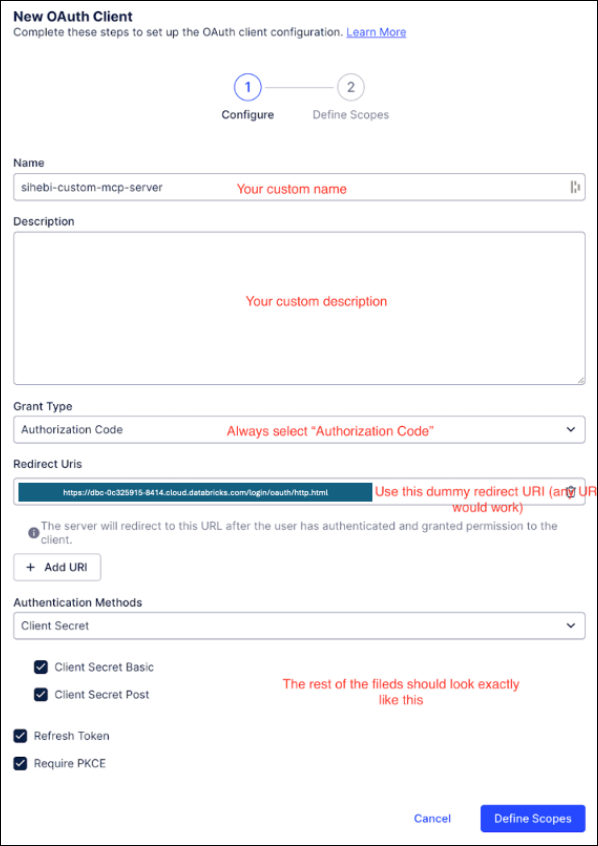
Click Define Scopes.
Save your Credentials (Client ID/Secret).
To assign permissions, click the Settings icon and select "Permissions".
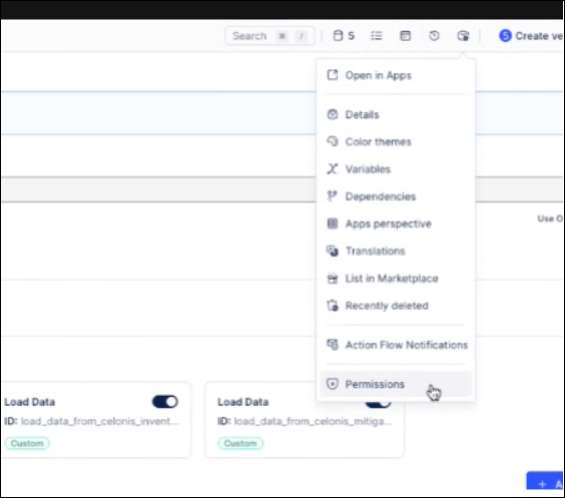
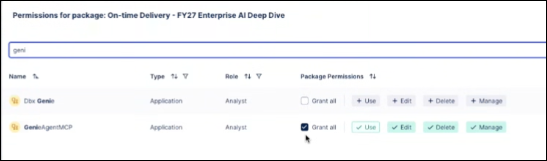
Use the checkboxes to grant permissions to the OAuth key in this specific Studio Package.
Unity Catalog serves as the unified governance layer within Databricks. By creating a Connection object in Unity Catalog, you centralize the management of credentials for external MCP servers. Databricks Workspace must be in a Model Serving-supported region and the user must have CREATE CONNECTION privilege.
This ensures that when Databricks Agents or Genies access Celonis, they do so through governed, reusable connections, removing the need for manual configuration per asset.
To create a connection in the Unity Catalog UI, go to Catalog > Create a connection.
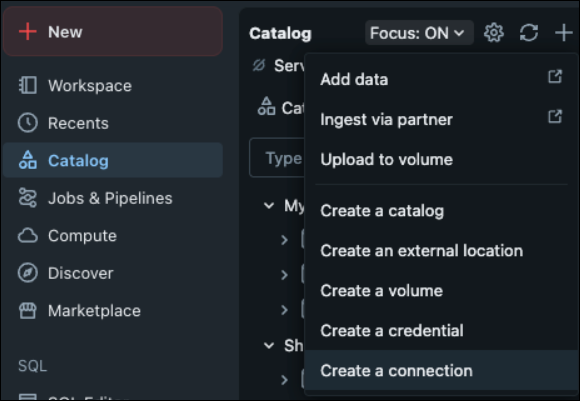
Select "HTTP" as the Connection type.
From the Auth type dropdown, select the authentication method (e.g., OAuth User-To-Machine Shared) matching your Celonis setup.
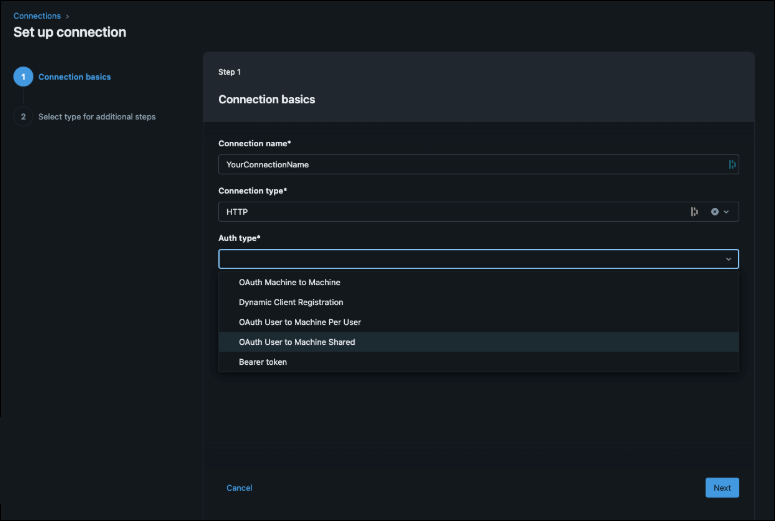
To configure the Authentication Endpoint (example for Setup with OAuth User-to-Machine Shared):
- Add Celonis base URL:
https://[team].[realm].cloud - Add Client ID and Secret from the OAuth2.0 previously set up.
- Add OAuth Scope:
mcp-asset.tools:execute - Enter the Authorization endpoint:
https://[team].[realm].cloud/oauth2/authorize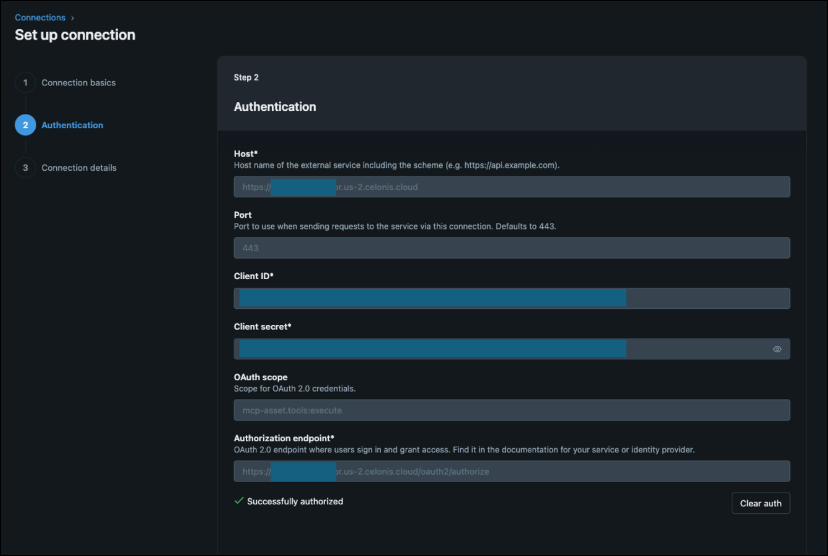
- Enter the Token Endpoint:
https://[team].[realm].cloud/oauth2/token - Set ONLY the Base path from the MCP asset:
/studio-copilot/api/v1/mcp-servers/mcp/[your-specific-url]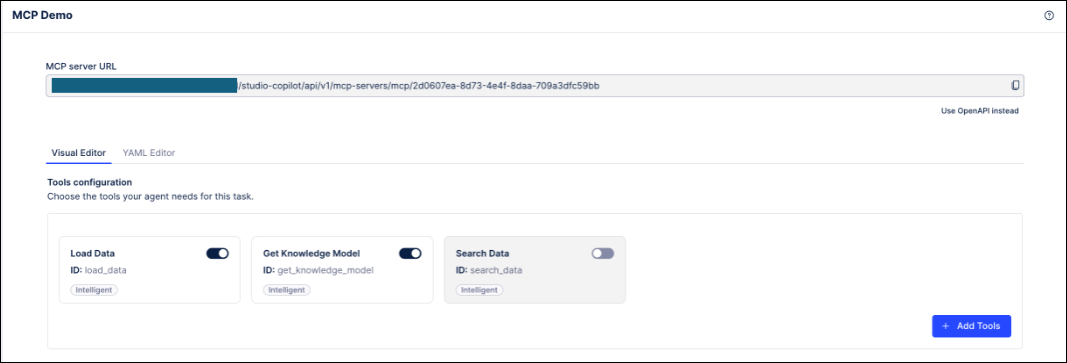
- Select the Is MCP Connection checkbox.
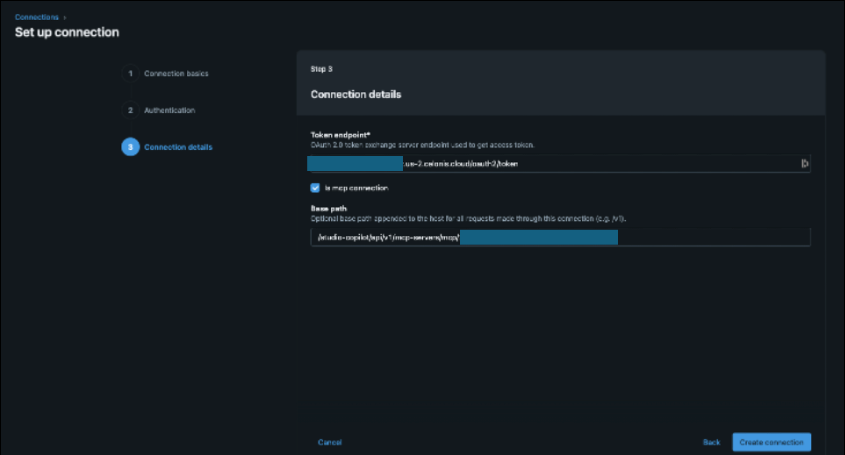
- Add Celonis base URL:
Click Create Connection.
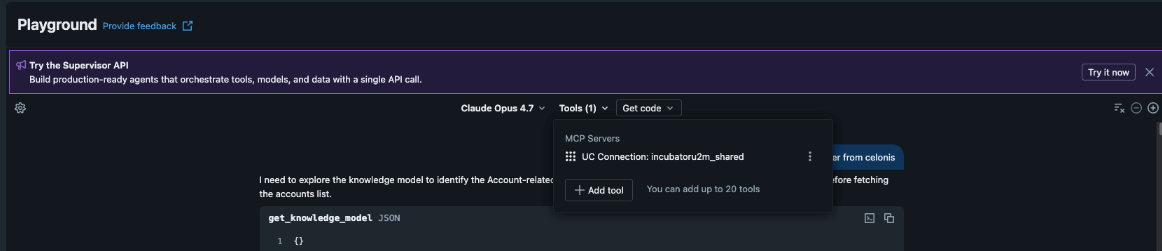
Once configured, the Celonis MCP Server is accessible via Unity Catalog and available to Databricks Agents and Genie.
- Connection Issues: If your connection drops frequently, verify that "Refresh Token" is enabled in your OAuth settings.
- Official Documentation: